
We are here to help!
Self-Service Support
-
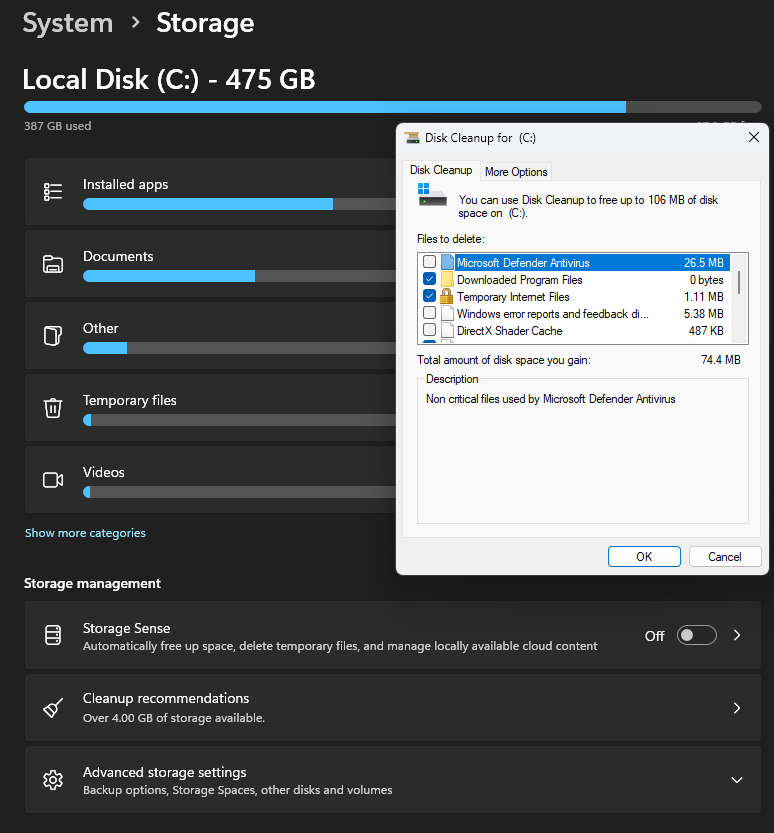
Free up some disk space
Option 1: Use Storage Settings (Recommended)
1. Click the Start Menu (Windows icon on the taskbar).
2. Click Settings (gear icon).
3. Select System.
4. Click Storage.
5. Wait a moment while Windows analyzes your storage.
6. Under Temporary files, click it.
7. Review the list and check the boxes for items you want to remove:
Temporary files
Recycle Bin
Thumbnails
Windows Update Cleanup (if available)⚠️ Be careful NOT to select “Downloads” unless you are sure you want to delete those files.
8. Click Remove files.
9. Confirm by clicking Continue.Option 2: Disk Cleanup (OG)
1. Click the Start Menu (Windows icon on the taskbar).
2. In the search box type: Disk Cleanup
3. (Disk Cleanup) should be at the top of the Start Menu.
4. Press the Enter key or use your mouse to click on (Disk Cleanup).
*Note: If you only have a C: drive skip number 5.
5. Make sure (C:) is selected and click OK.
6. On the Disk Cleanup window find and click on (Clean up system files)
*Note: If you only have a C: drive skip number 7.
7. Make sure (C:) is selected and click OK.
8. Place check boxes in the following boxes (Only):
a: Downloaded Program Files
b: Temporary Internet Files
c: Delivery Optimization Files
d: Device Driver Packages
e: Recycling Bin (Only if you want to empty it).
f: Temporary Files
9. Press OK and wait for it to complete.This can take some time depending on how much is being deleted.
Extra TipsMove large files (videos, photos) to an external drive.
Restart your computer after cleanup for best performance.
Keep at least 10–20% (10-20 Gigabytes) of your drive free for smooth operation. -
Coming Soon!
More content is on it’s way.
-
Even more coming soon!
It is on it’s way. . .